Sensitive data
Secrets on screen? Hide them.
The best screenshot of your product often has something in it that shouldn’t be shared: a live API key, a customer’s email, a face. SnapStudio finds them and covers the ones you choose, before the image goes anywhere.
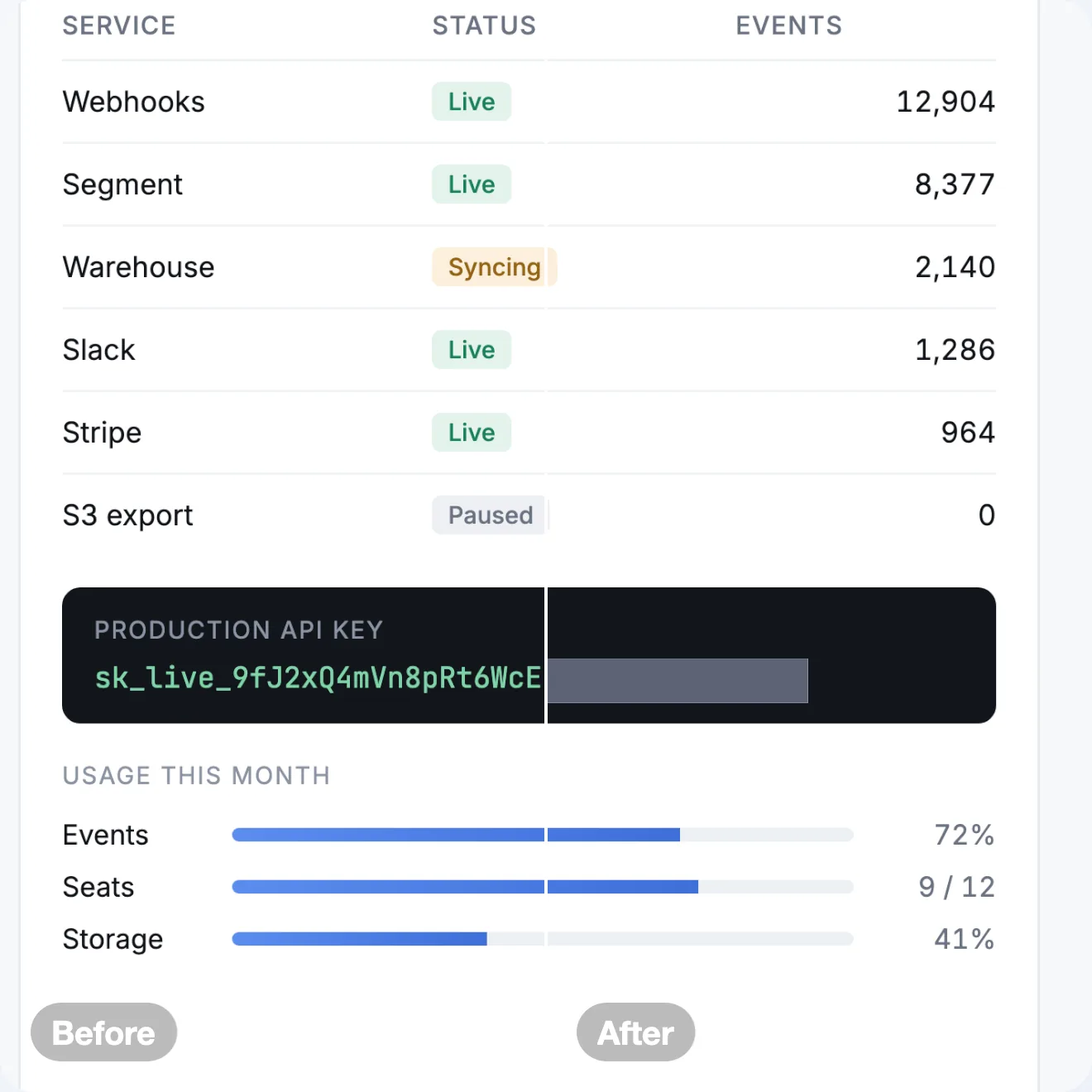
Before and after
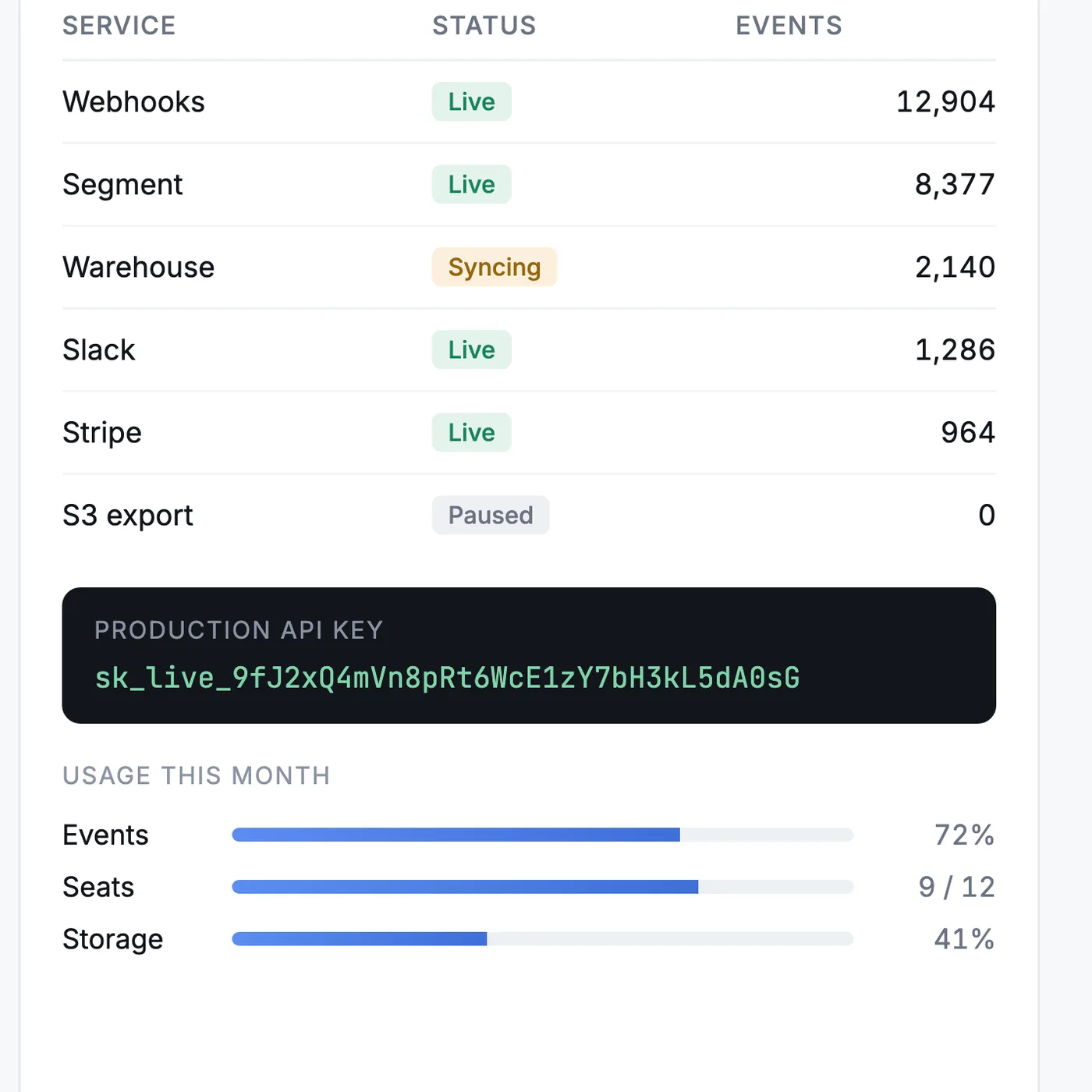
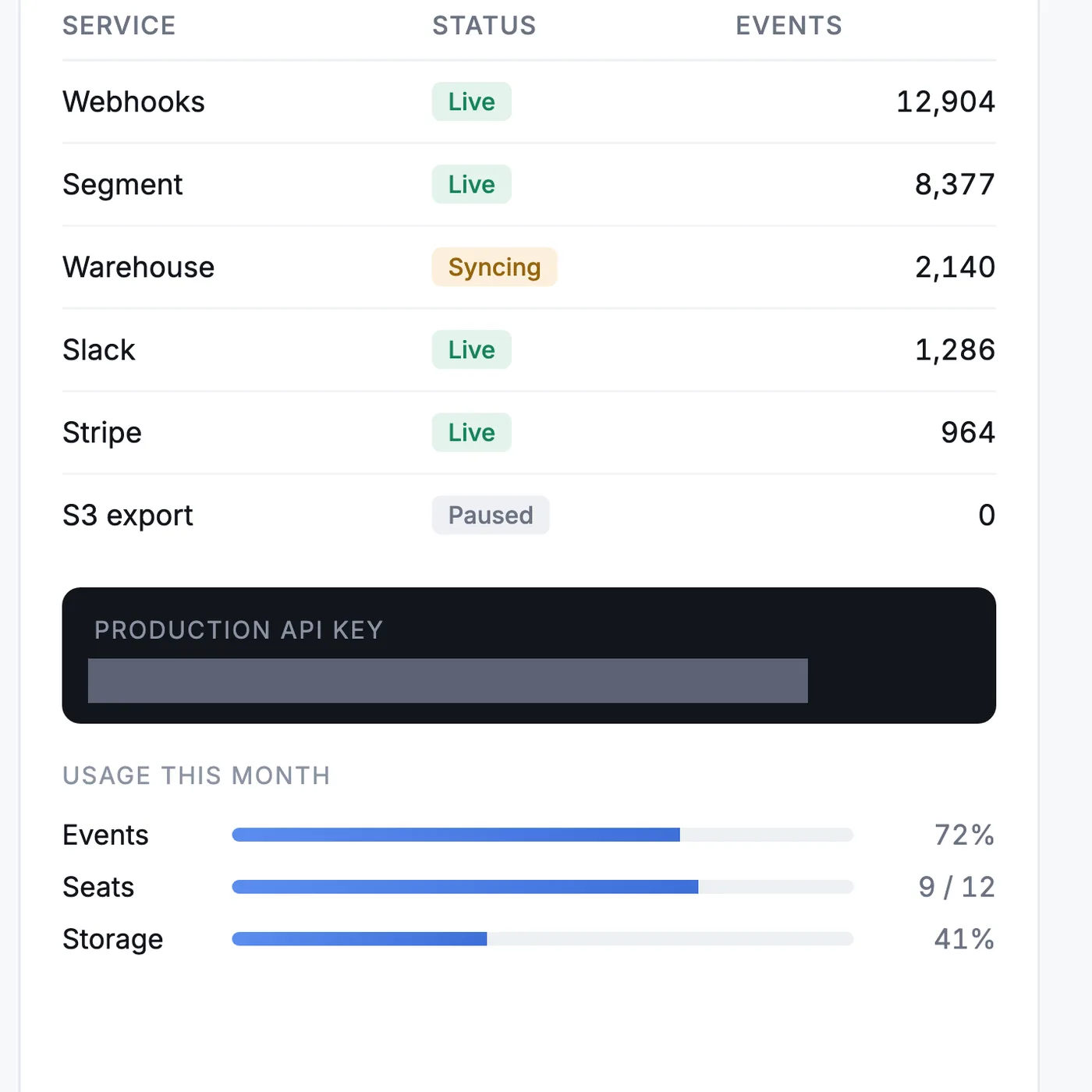
Every “after” on this page is SnapStudio’s own output, not retouched.
What it looks for
- API keys and tokens
- Email addresses
- Card numbers and IBANs
- Phone numbers and IP addresses
- Links with tokens in them, and home-folder paths
- Faces
How to use it
- Select the image layer in the Layers panel.
- Choose Edit → Redact…. The screenshot is scanned on your Mac.
- Every finding is listed and selected; untick anything you want to keep.
- Pick a style and click Redact.
Choose the right cover
A solid block is permanent. Pixelation and blur look softer, but blurred or pixelated text can sometimes be reconstructed, and SnapStudio warns you when you pick them for text.
With an AI agent
Check every screenshot in this document for secrets and cover anything you find with a solid block.
detect_sensitive_dataredact_layer are among the 87 MCP tools built into SnapStudio.