Screenshot → asset
Raw screenshot in. Store-ready out.
A raw capture looks like a bug report. SnapStudio puts it on a backdrop with padding, rounded corners and a shadow, frames it in a device if you want one, and exports every size the App Store asks for.
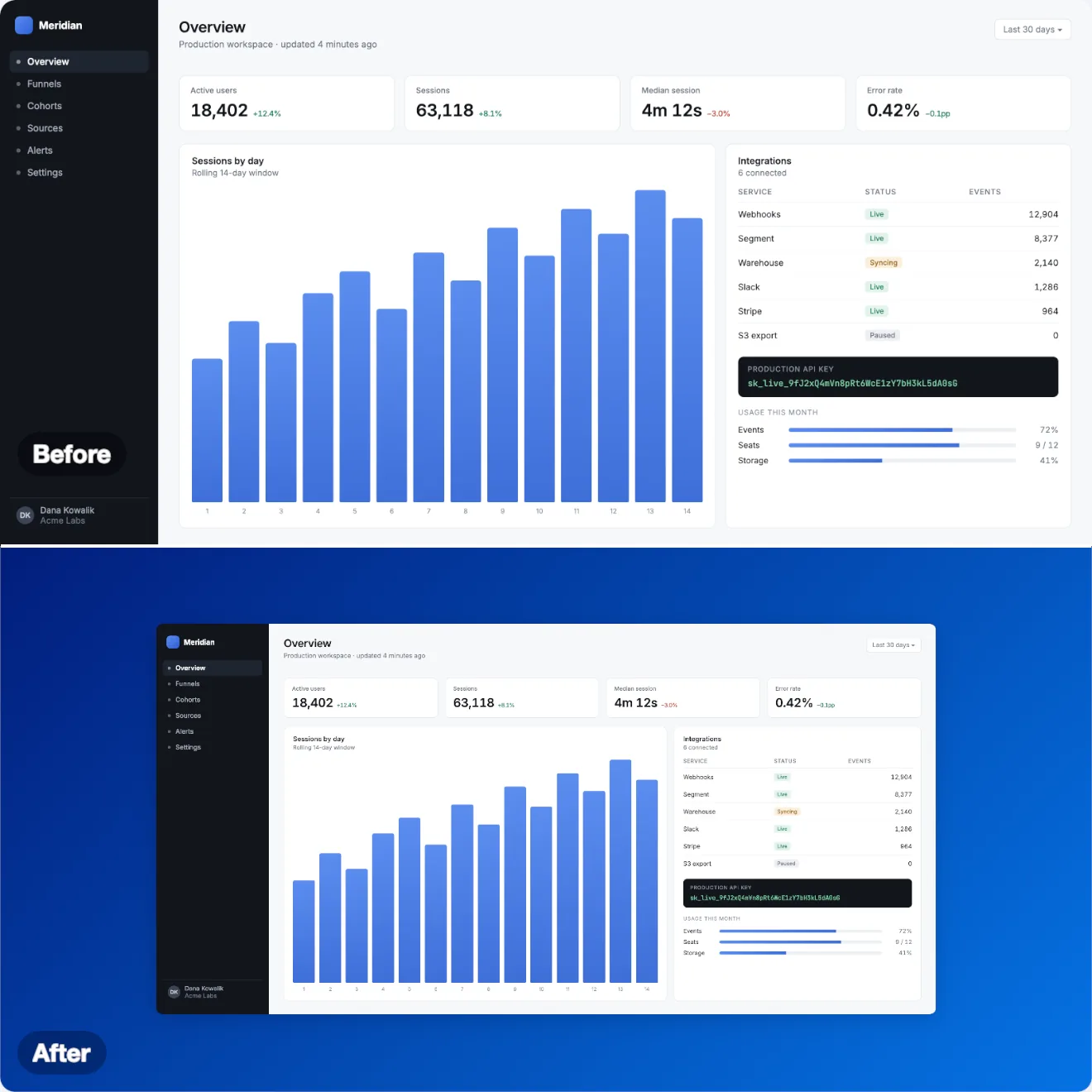
Before and after
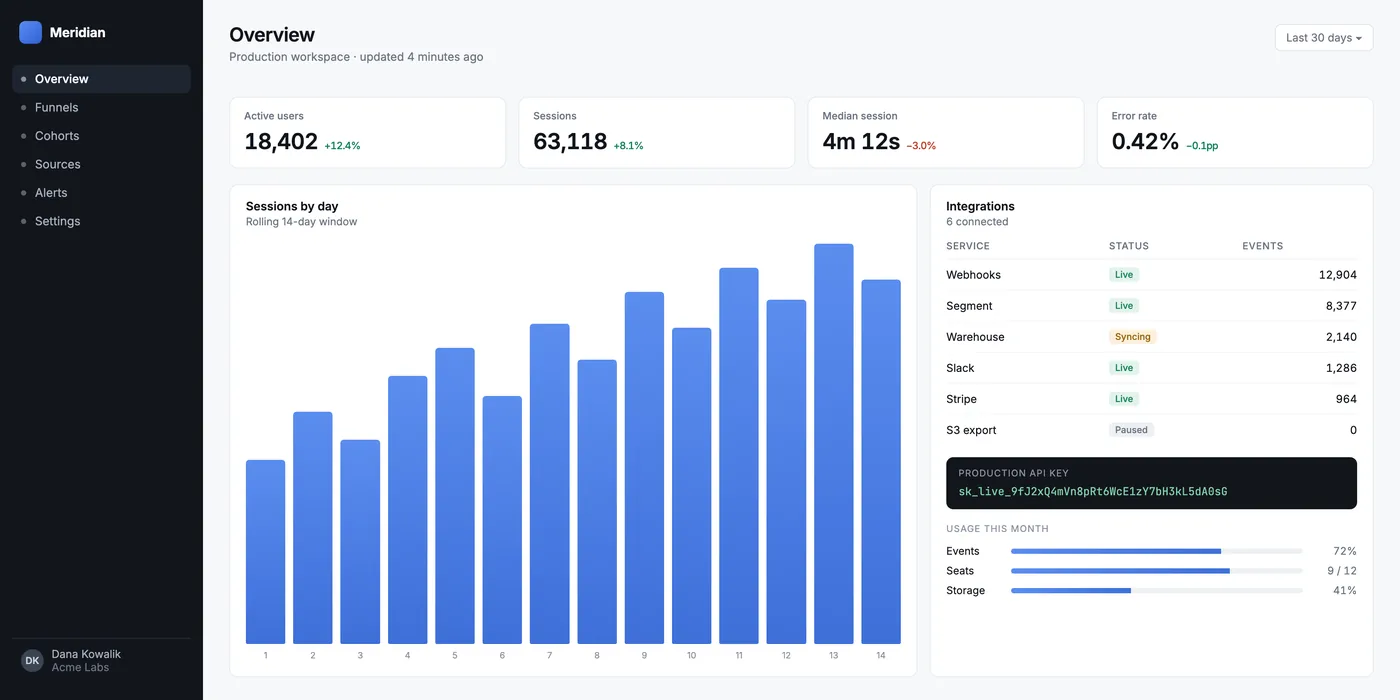
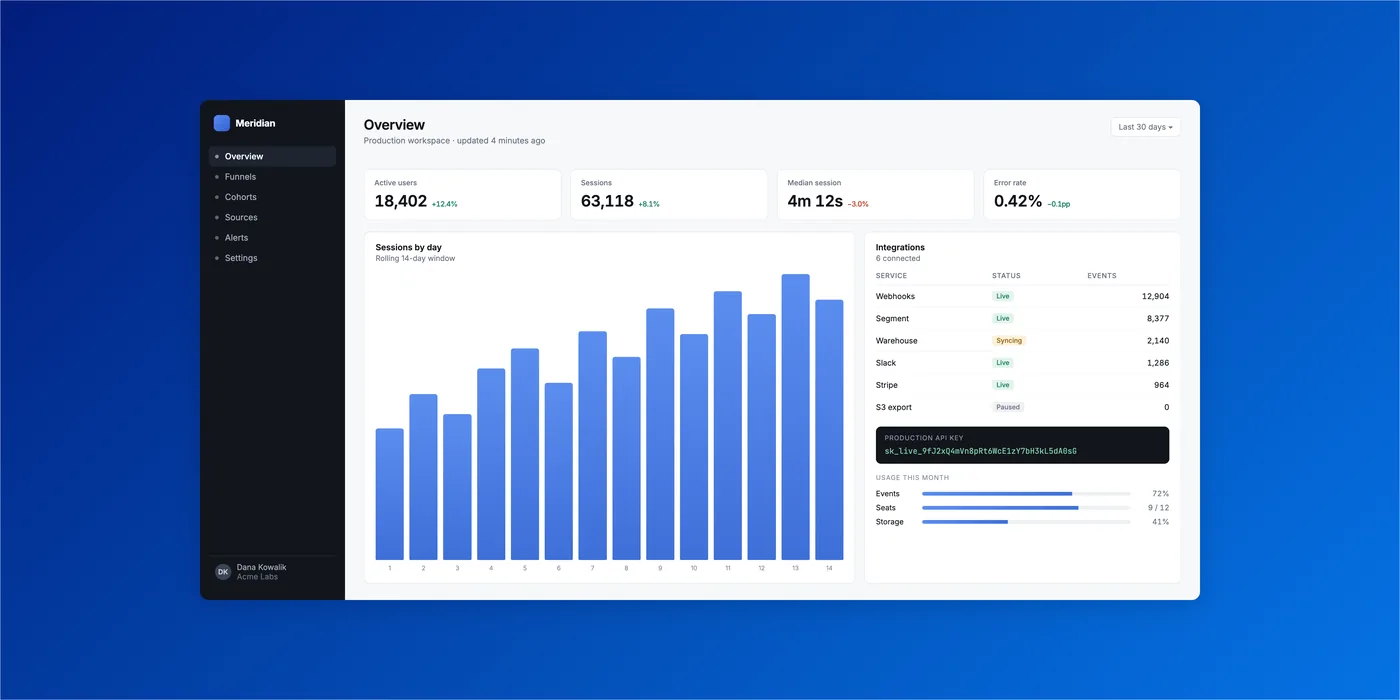
Every “after” on this page is SnapStudio’s own output, not retouched.
What Beautify does
Beautify wraps the screenshot in a backdrop and gives it room to breathe. Pick one of 22 styles (17 gradients and 5 mesh gradients), then set the padding, corner radius and shadow with a live preview. The result is a layered document, so you can keep editing it afterwards.
Sized for retina captures
Corner radius and shadow are measured in points of a 1440-pixel screenshot and grow with larger captures, so a 3200-pixel window gets corners you can actually see. The preview shows exactly what Apply produces.
Frame it in a device
Device Mockup puts the shot in a Mac, iPhone, iPad, Android phone, browser window or Apple Watch frame.
Every App Store size in one export
File → Export for Platforms… writes the App Store screenshot sizes in one pass, together with other platform presets, into a folder you choose.
Getting there
- On the start screen, click Beautify. If a screenshot is on the clipboard it opens straight away; otherwise pick a file.
- Choose a style, adjust padding, corners and shadow, and click Apply.
- To give a whole folder the same look, use batch processing with the Beautify step.
With an AI agent
Beautify the release screenshots with Ocean Blue and 20% padding, then export the App Store sizes.
beautify_layerapply_mockupexport_platform_packbatch_process are among the 87 MCP tools built into SnapStudio.